


WIMS provides a comprehensive user creation feature that allows administrators to easily manage user accounts, ensuring secure and organized access to the system’s functionalities.
Key Features of the User Creation Module
- Intuitive Interface: The user creation module is designed with a user-friendly interface that simplifies adding new users. Administrators can quickly navigate through the necessary steps without requiring extensive training.
- Role-Based Access Control: One of the primary features is the ability to assign roles and permissions during the user creation process. This ensures that users have access only to the modules and data necessary for their role, enhancing security and operational efficiency.
Step-by-Step Guide to Creating a User
Step 1: Access the User Management Module
- Log in as an administrator and navigate to the User Management section of the ERP system.
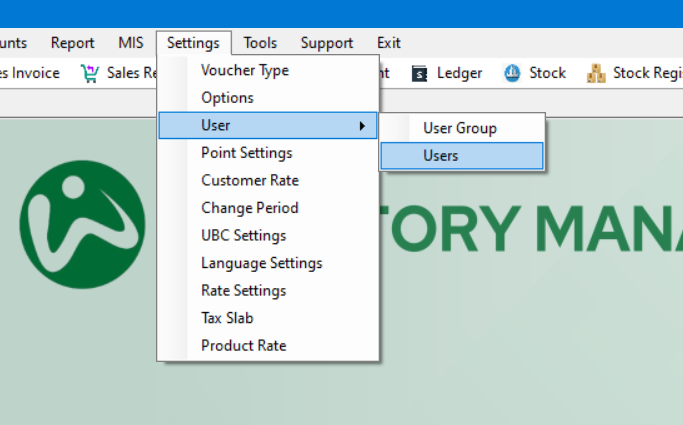
Navigation: Settings -> User -> Users
Step 2: Initiate User Creation
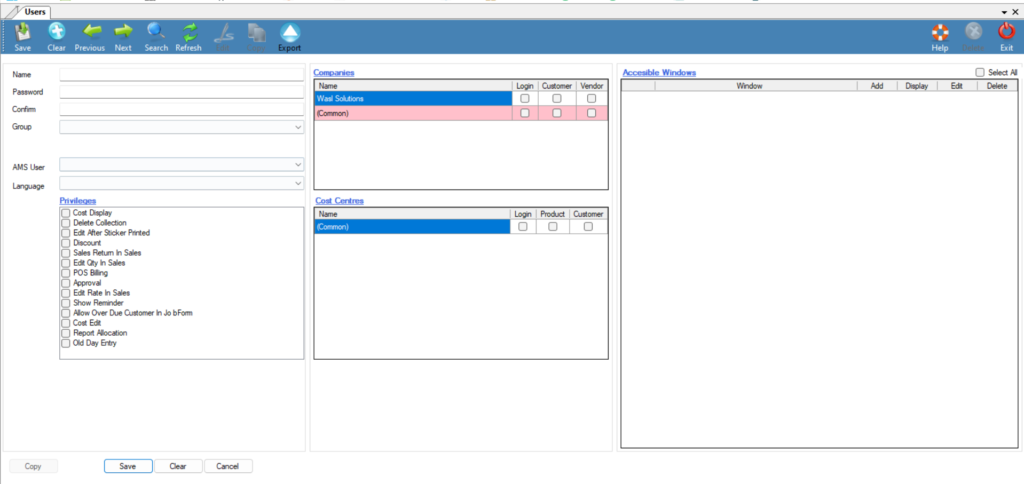
- The user Management Window in Add Mode will appear after clicking the Users option in the Settings Menu.
Step 3: Enter User Details
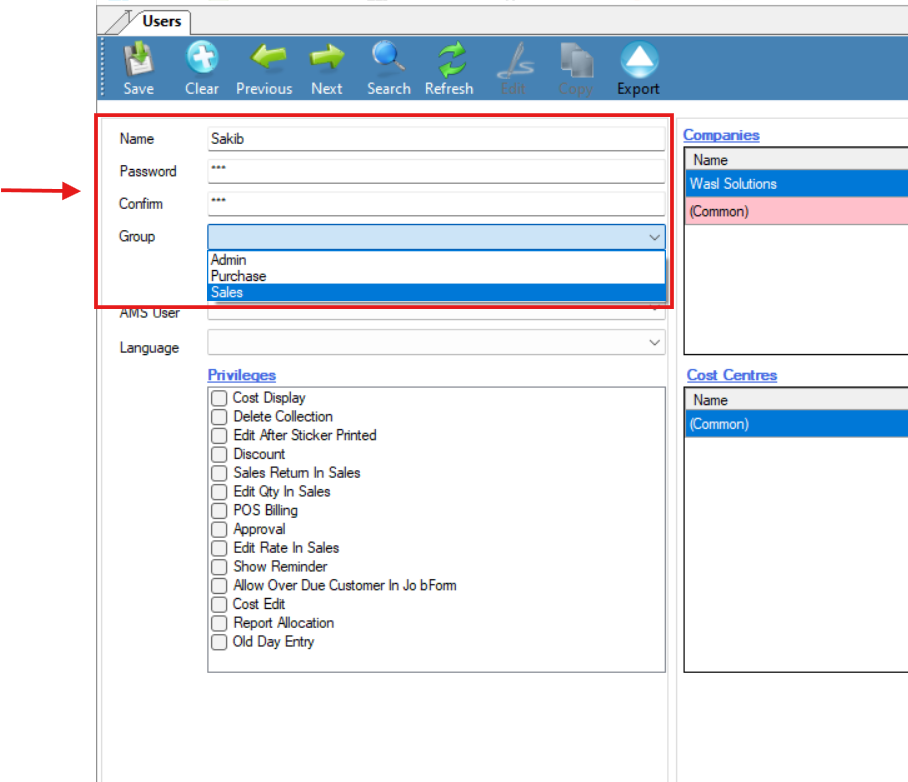
- Fill in the required fields, including the user’s name, and password, and Confirm the Password.
- Select the User Group as per the role of User for example Admin, Sales, or Purchase where the accessible windows are predefined and only selected Menus will be displayed in the Accessible windows option for giving access.
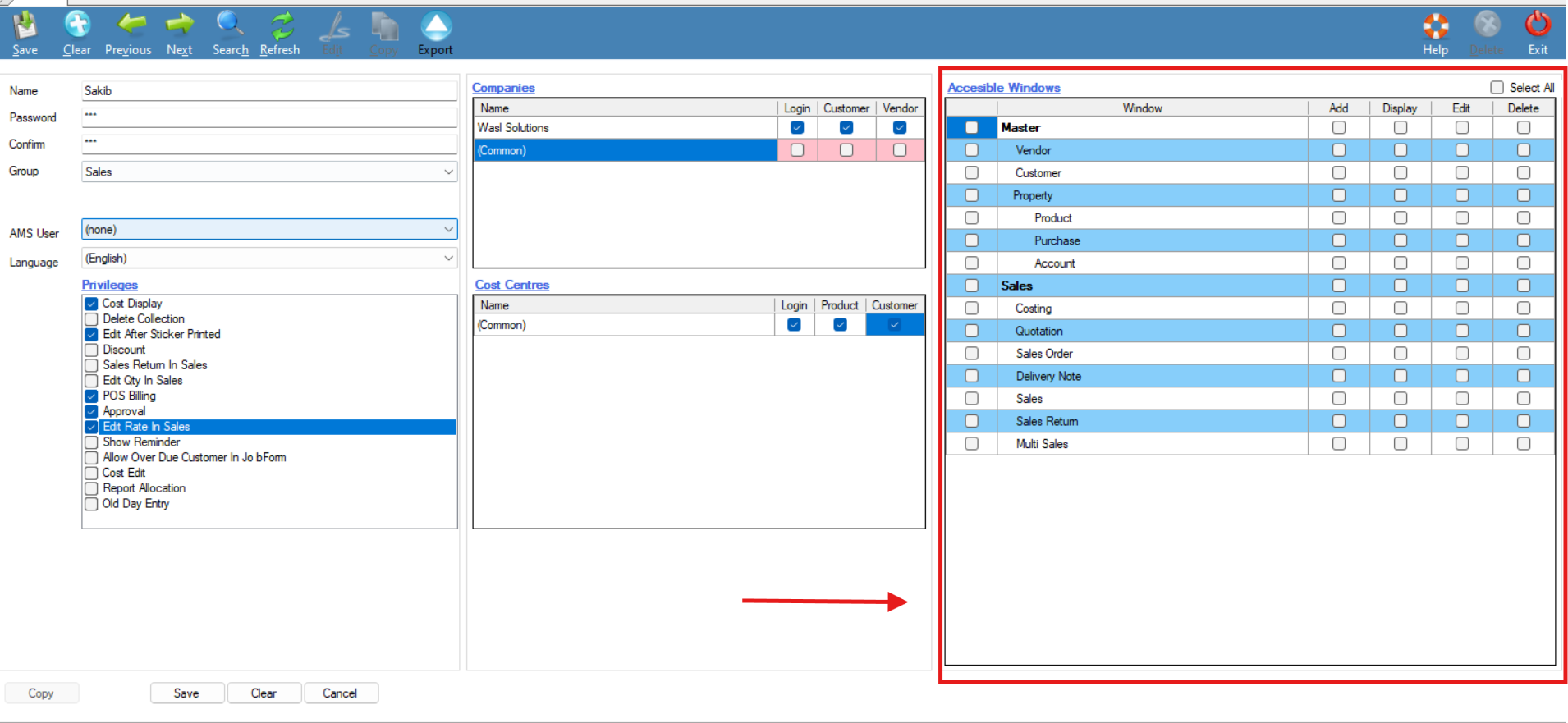
- For example, if we created a user group Sales and assigned Sales-related Menu rights only for the user group, at the time of selecting “Sales” in the Group option the Accessible Windows form only displays the predefined Menu Rights for the Sales (shown below), so that it will be easy for the administrator to give access rights for the specified User.
Step 4: Assign Roles and Permissions
- Assign AMS User for Mobile App rights if needed, else remain it as “none”.
- Assign Language for the user in the Language option for the display language of WIMS for the specific User.
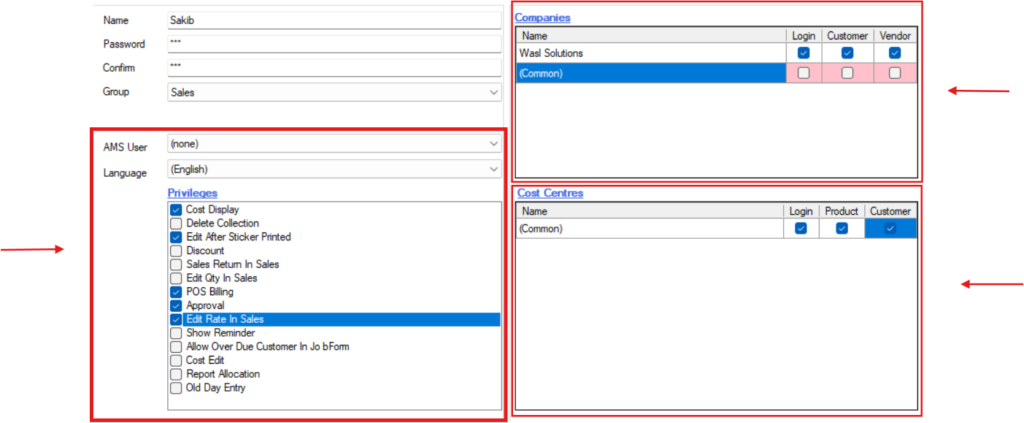
- In the Privileges form, assign extra privileges for the User by checking the boxes of privileges listed.
- In the Companies form, assign specific access rights to the User for selected companies by simply checking the required boxes.
- In the Cost Centres form, assign cost centers right to the specific User.
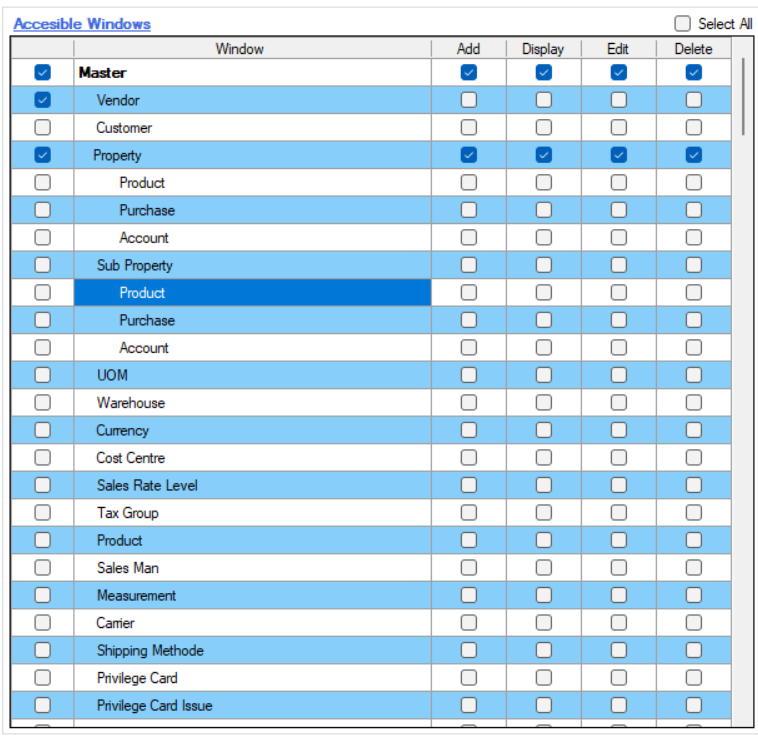
- In the Accessible Window Form, assign the required menu rights for the User by checking the respective boxes of the specific Menu.
Step 5: Save and Notify the User
- Save the new user account.